How can we help?
Every screen of the app, explained — plus step-by-step tutorials and quick answers.
Start here new to Adeagle?
New to Adeagle? Install the app, answer a few onboarding questions, choose a plan and launch your first campaign - then know what to do in your first weeks.
TutorialCreate your first campaignCreate an Adeagle campaign in four steps - products, targeting, budget and countries - with what every field means and the tips that make a first campaign work.
TutorialYour first weeks with Adeagle: the learning phase, week by weekYour first weeks with Adeagle, week by week - what to set up, test and fix, what to leave to the learning phase, and how much traffic your sales need.
Questions asked before you
Measure See what your ads do
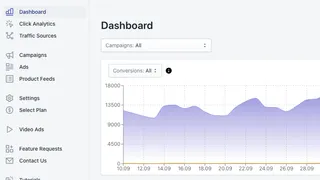
How to read the Adeagle dashboard - impressions, clicks, CTR, orders, CR, revenue, ad spend and ROAS for all campaigns or one, with a daily chart and table.
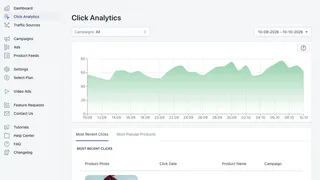
How to use Click Analytics in Adeagle - the daily click chart, every recent click with its product and campaign, and the products shoppers click the most.
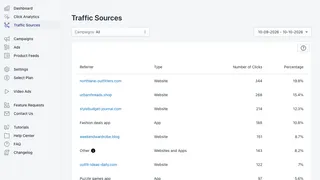
How to read Traffic Sources in Adeagle - the websites and apps that showed your ads and sent visitors to your store, with the clicks and share from each one.
Run Manage campaigns and ads
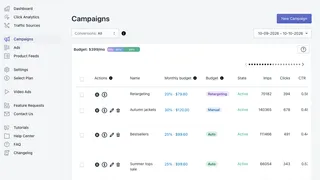
How to use the Campaigns section of Adeagle - every campaign with its budget and results, Edit Budgets, Auto and Manual mode, and editing or pausing campaigns.
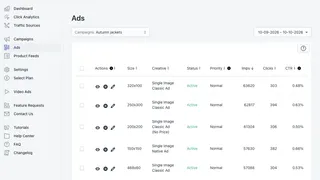
How to use the Ads section of Adeagle - every banner of a campaign with its size, format, impressions, clicks and CTR, previews, priorities and pausing.
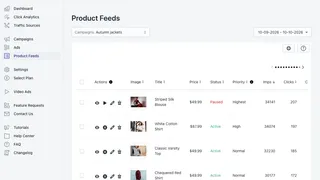
How to use Product Feeds in Adeagle - each product's results in your ads, adding products to a campaign, and editing a product's image, title, price and priority.
Set up Make Adeagle fit your store
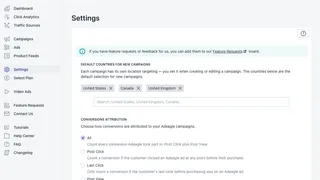
How to use Adeagle's Settings - default countries for new campaigns, how conversions are counted, and on the free plan the ads shown in your store.
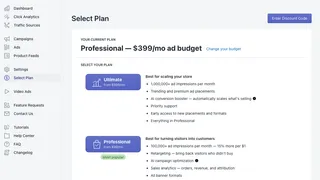
How to use Select Plan in Adeagle - compare the plans, choose your monthly ad budget with the slider, see the estimated impressions and use a discount code.