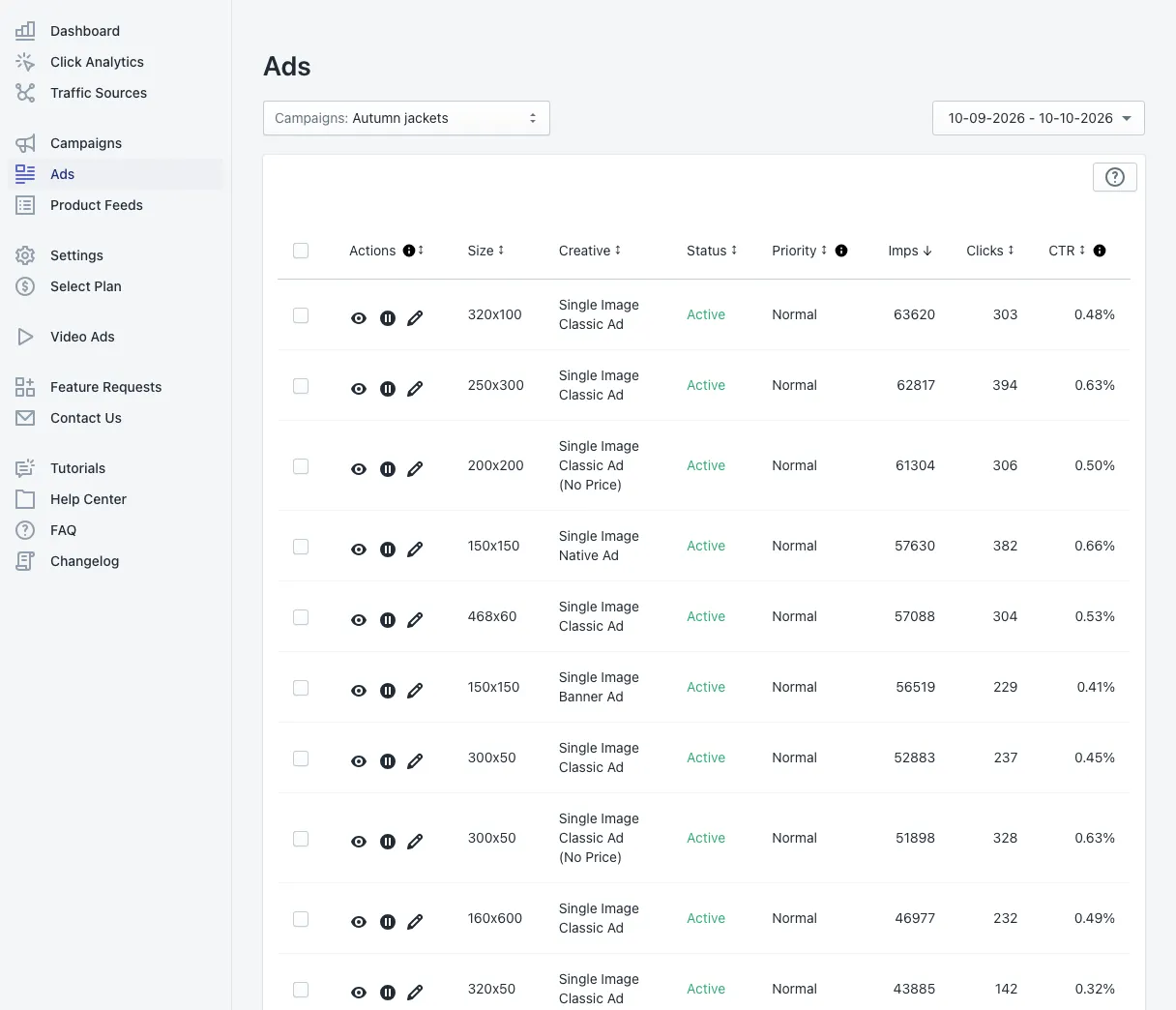
The Ads section lists every banner a campaign uses. Adeagle builds the banners from your products in every common size and format, so they fit any website, app or partner store. Here you see how each one performs, and you can preview, boost or pause it.
Choose what you look at
- Campaigns (top left) — pick the campaign whose banners you want to see.
- Date range (top right) — the last 30 days by default.
The banner table
Each row is one banner format:
- Actions — preview the ad (eye), start or pause it, and edit it (pencil).
- Size — the banner size in pixels, such as 300x250 or 728x90.
- Creative — the format: Single Image Classic Ad (with or without the price), Native Ad, Banner Ad, Notification Ad, Topbar Ad and more.
- Status — Active or Paused.
- Priority — from Lowest to Highest; a higher priority gets more impressions.
- Imps, Clicks, CTR — the banner’s results in the period.
Click a column header to sort by it — for example by CTR, to see your best and weakest formats at the top.
Preview a banner
The eye icon shows the banner the way shoppers see it, with one of your products in it.
Edit a banner
The pencil opens Edit Ad with two settings:
- Ad state — active or paused.
- Ad priority — Lowest, Low, Normal, High or Highest.
Change many banners at once
Tick several rows (or the header box for all) to pause, start or change the priority of many banners in one step.
Tips
- Boost what works. A format with a clearly higher CTR earns a higher priority.
- Pause what does not. A format that stays far below the others after a few weeks can be paused.
- Let the AI do it. With AI optimization on, Adeagle adjusts priorities and activations for you, and you see its changes here.
- To change the image, title or price a banner shows, edit the product in Product Feeds.
Questions
No. Adeagle builds every banner from your product feed, in every standard size plus native and full-screen formats. To change what a product looks like in them, edit it in Product Feeds.
Give them a few weeks first - a banner needs enough impressions before its CTR means anything. If AI optimization is on, it pauses and boosts banners for you.