
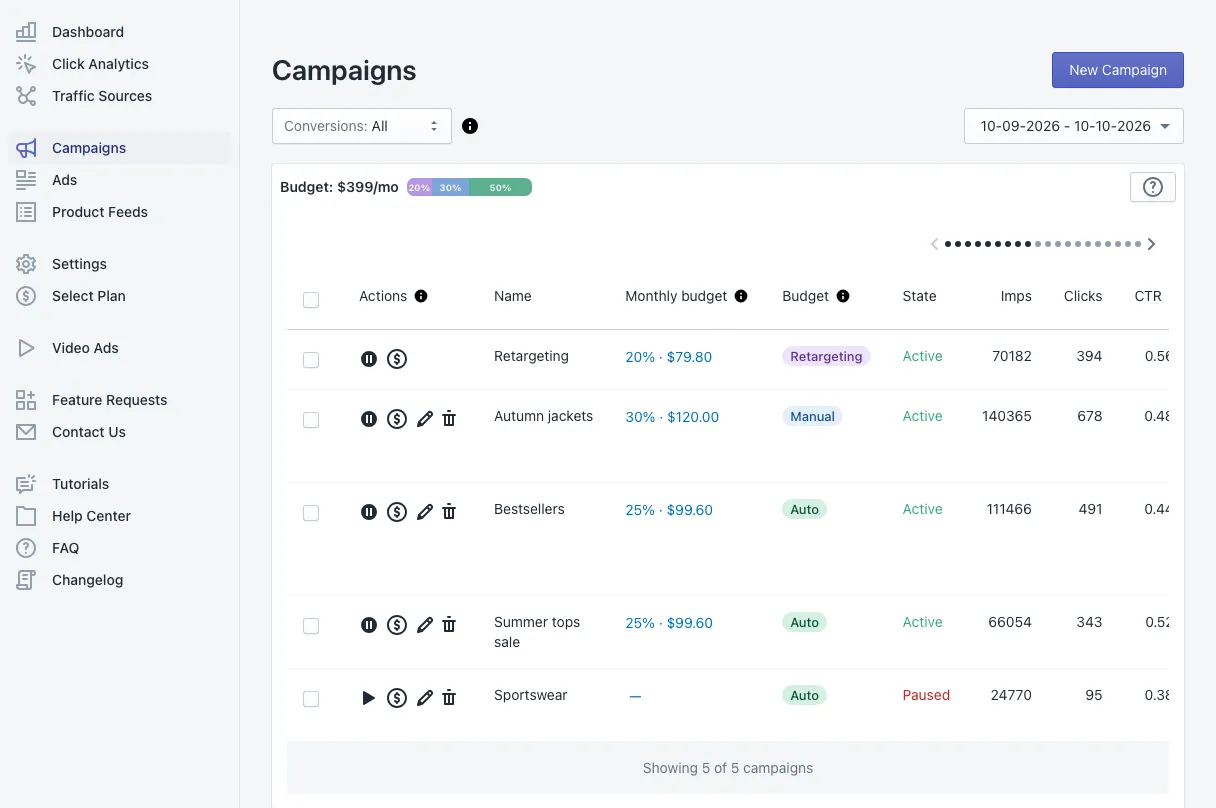
The Campaigns section is where you create, compare and control your campaigns. Every campaign is one row with its budget, its results and its targeting.
The top of the page
- New Campaign (top right) opens the campaign wizard.
- Conversions chooses the attribution model for the Orders, Revenue and ROAS columns — the same menu as on the Dashboard.
- Date range sets the period for every number in the table.
- Budget: $…/mo shows your monthly ad budget and a coloured bar of how it is split between Retargeting, Manual and Auto campaigns. Click it to open Edit Budgets.
The campaign table
Each row starts with a checkbox and the actions: start or pause the campaign, edit its budget (the $ icon), edit the campaign (pencil) and delete it (bin).
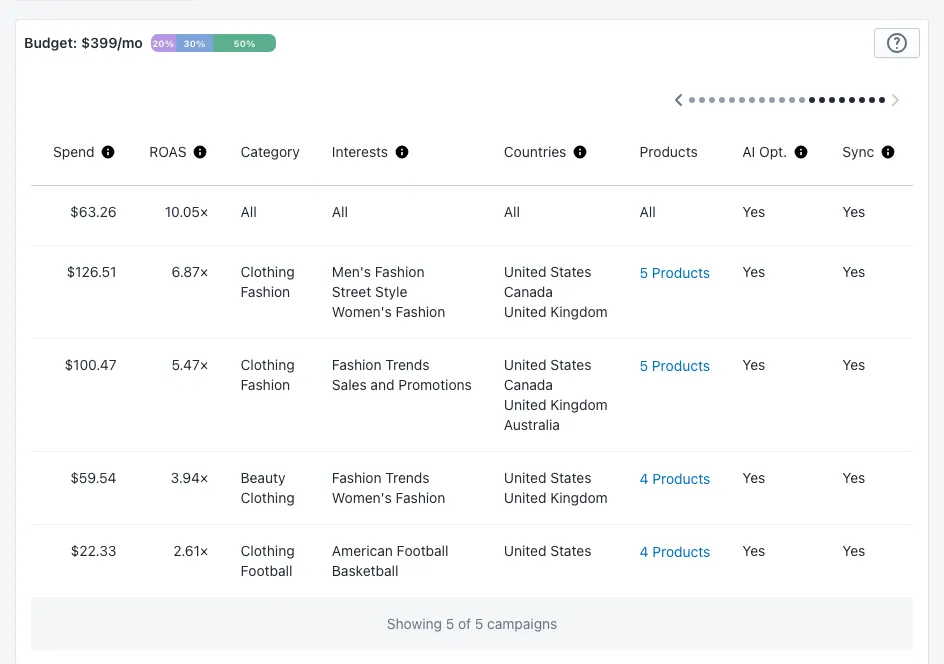
The table is wide; scroll it sideways or use the dots above it. Its columns:
| Column | What it shows |
|---|---|
| Name | The campaign’s name. |
| Monthly budget | The campaign’s share of your budget, in percent and dollars. |
| Budget | Retargeting, Manual or Auto — see below. |
| State | Active or Paused. |
| Imps, Clicks, CTR | Impressions, clicks and click-through rate in the period. |
| Orders, CR, Revenue | Orders from the campaign, conversion rate and their value. |
| Spend, ROAS | What the campaign spent and the revenue it returned per dollar. |
| Category, Interests, Countries | The campaign’s targeting. All means no limit. |
| Products | How many products the campaign advertises; click to see them. |
| AI Opt. | Whether AI optimization manages the campaign’s ads and products. |
| Sync | Whether new products in the campaign’s collections join it automatically. |
Budgets: Retargeting, Manual and Auto
On the paid plans your plan price is your monthly ad budget, and it is always fully in use. Each campaign gets a share of it in one of three ways:
- Retargeting — on Professional and Ultimate, a reserved part of the budget (10–33%) for the campaign that brings back shoppers who already visited your store.
- Manual — you fix the campaign’s monthly amount, and it keeps that amount whatever else changes.
- Auto — Adeagle splits the rest of the budget between your Auto campaigns and rebalances it for you, either evenly or by performance (more for the campaigns that sell).
When you pause a campaign, its share moves to the others. More in Every campaign now gets its own budget.
Edit Budgets
Click Budget: $…/mo or a campaign’s $ icon to open Edit Budgets.
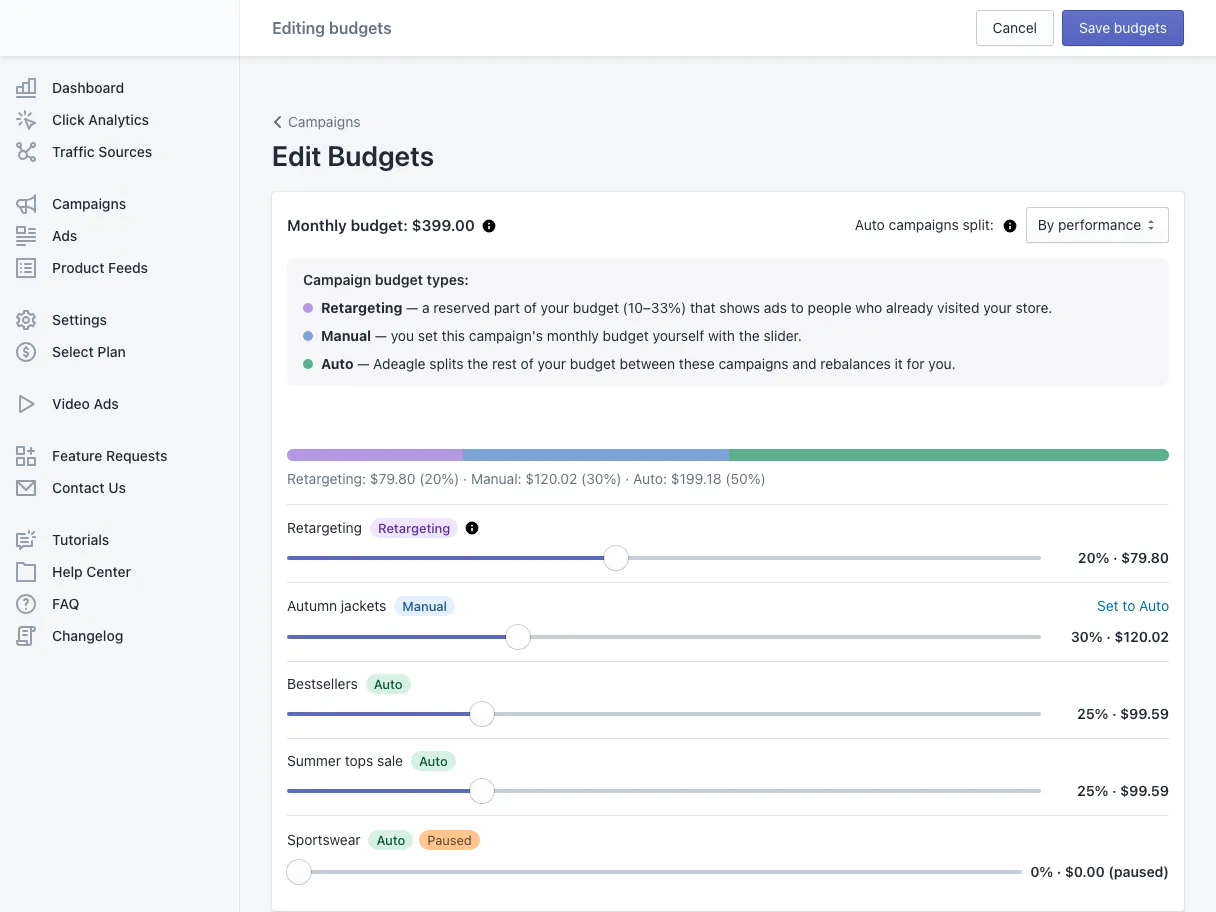
- Monthly budget — your plan budget. Change it in Select Plan.
- Auto campaigns split — Evenly or By performance.
- The bar — how the budget divides into Retargeting, Manual and Auto right now.
- One slider per campaign — drag a campaign’s slider and it becomes Manual with that amount; the Auto campaigns rebalance around it. Set to Auto gives it back to Adeagle.
- Retargeting — its slider sets the reserved share, from 10% to 33%.
Click Save budgets to apply the changes, or Cancel to leave everything as it was.
Edit, pause or delete a campaign
- Pause / start — the first action icon. A paused campaign keeps its settings and history.
- Edit — the pencil opens the campaign’s settings: name, categories, interests, countries, state and sync collections. To add or remove products, use Product Feeds.
- Delete — removes the campaign. This cannot be undone.
Change many campaigns at once
Tick the checkboxes of several campaigns (or the box in the header to select all) and use the buttons above the table to start or pause them together. More in bulk edit.
Tips
- Give a new campaign its learning weeks before judging it. The banner at the top shows the progress of the learning phase.
- Compare ROAS between campaigns - against the break-even ROAS from the ROAS calculator - then move budget toward the best ones — pin them to a higher Manual amount, or let By performance do it.
- A second campaign with different products or interests is the fastest way to learn what sells.
Questions
On Professional and Ultimate, Adeagle adds one Retargeting campaign for you. It shows the products a shopper viewed in your store to that shopper again on other sites and apps. It gets a reserved share of your budget, which you set in Edit Budgets.
It stops showing ads, and its share of the budget moves to your other campaigns, so the whole budget keeps working. Start it again with the same button.
Yes. The pencil icon opens the campaign's settings - name, categories, interests, countries and state - and Product Feeds lets you add or remove products.