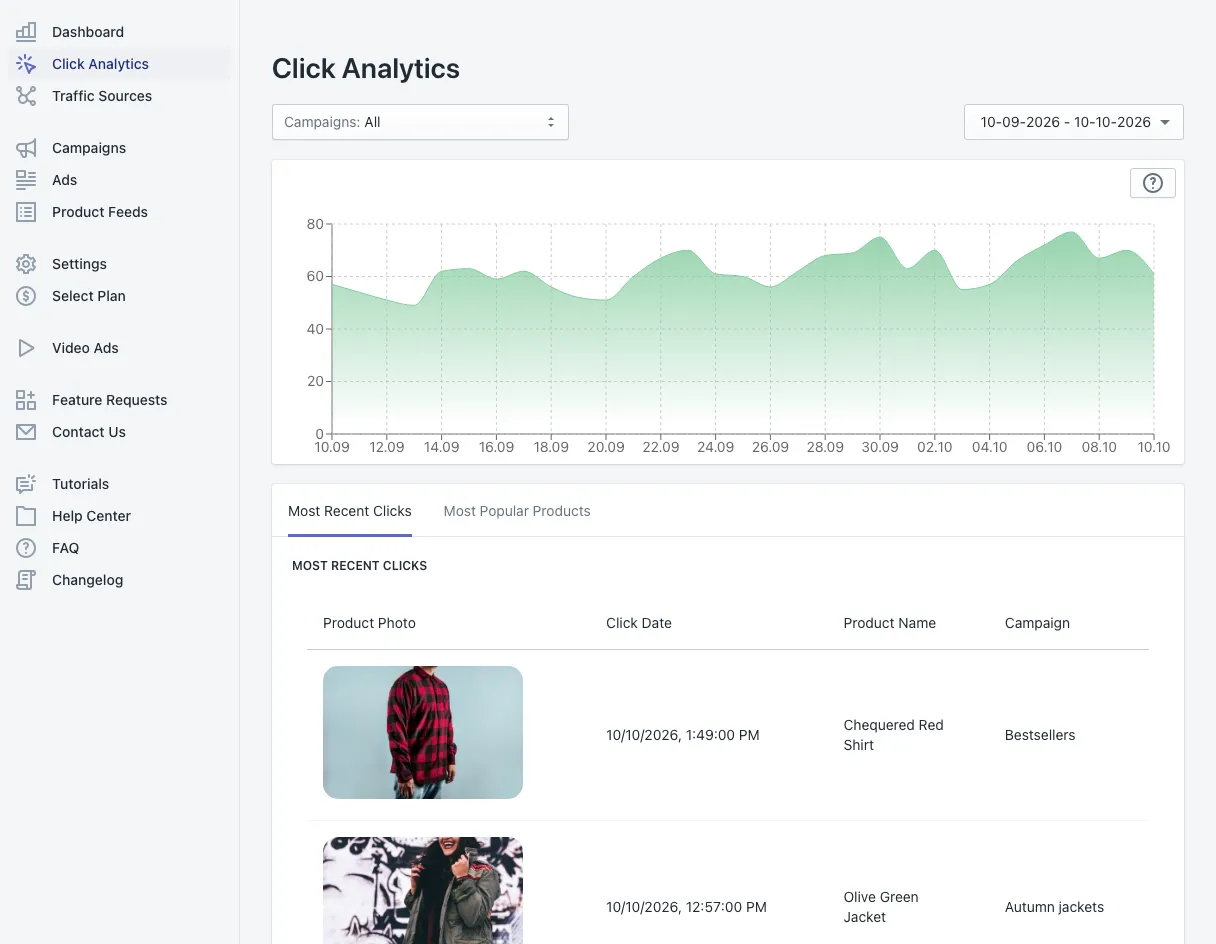
Click Analytics shows every click on your ads: when it happened, which product the shopper clicked, and which campaign showed the ad. Use it to learn which products catch shoppers’ attention.
Choose what you look at
- Campaigns (top left) — all campaigns, or one.
- Date range (top right) — the last 30 days by default.
The click chart
The chart shows your clicks per day for the selected campaigns and dates. A rising line after a change — new products, a new campaign, a better product photo — tells you the change worked.
Most Recent Clicks
The first tab lists clicks one by one, newest first:
- Product Photo — the image the shopper saw in the ad.
- Click Date — the date and time of the click.
- Product Name — the product that was clicked.
- Campaign — the campaign that showed the ad.
The list shows 50 clicks per page; use the arrows at the bottom to go back in time.
Most Popular Products
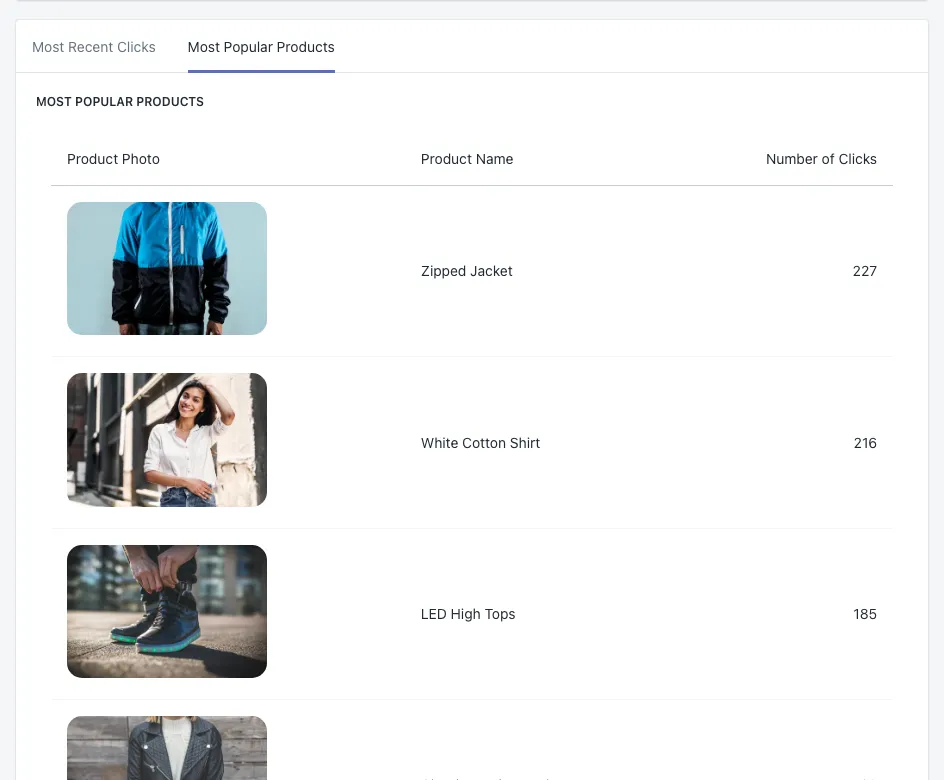
The second tab ranks your products by number of clicks in the selected period.
How to use it:
- Products at the top attract shoppers. Make sure they are in stock and that their product pages convert — and consider a campaign just for them.
- Products that never appear may need a better photo or a clearer title. You can change both for your ads only in Product Feeds.
- Compare clicks with orders in Campaigns: a product with many clicks and few orders usually has a price or product-page problem, not an ad problem.
Where to go next
- See where the clicks came from in Traffic Sources.
- See sales and ROAS on the Dashboard.
Questions
No. A click is a shopper who came to your store from an ad. Orders and revenue from those visits are on the Dashboard and in the Campaigns section.
Yes. Pick the campaign in the Campaigns menu at the top left; the chart and both tabs then show only that campaign's clicks.