
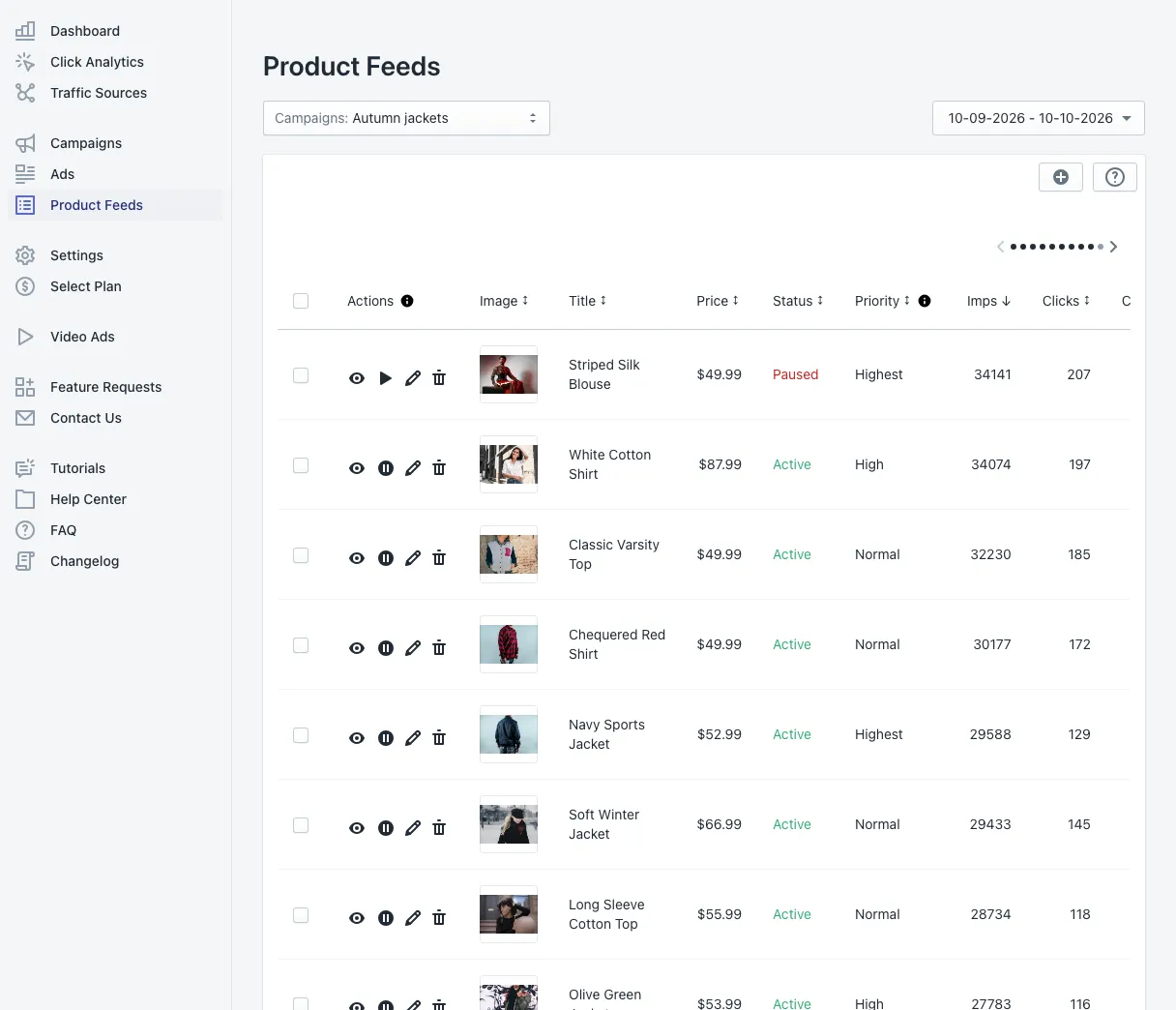
Product Feeds is where you manage the products inside a campaign: which ones it advertises, how each one performs, and how it looks in your ads.
Choose what you look at
- Campaigns (top left) — pick the campaign whose products you want to see.
- Date range (top right) — the last 30 days by default.
The product table
Each row is one product of the campaign:
- Actions — preview the product in an ad (eye), start or pause it, edit it (pencil) and remove it from the campaign (bin).
- Image, Title, Price — what the ads show for this product.
- Status — Active or Paused. A paused product stays in the campaign but is not shown.
- Priority — from Lowest to Highest; a higher priority gets more impressions.
- Imps, Clicks, CTR — the product’s results in the period.
Click a column header to sort, for example by clicks to find your strongest products.
Add products to a campaign
- Pick the campaign at the top left.
- Click the + icon above the table.
- Choose products or whole collections.
- Click Add Products.
If the campaign uses collections with Sync on, products you add to those collections in Shopify later join the campaign automatically — see how to add products to collections.
Edit a product for your ads
The pencil opens Edit Product Feed:
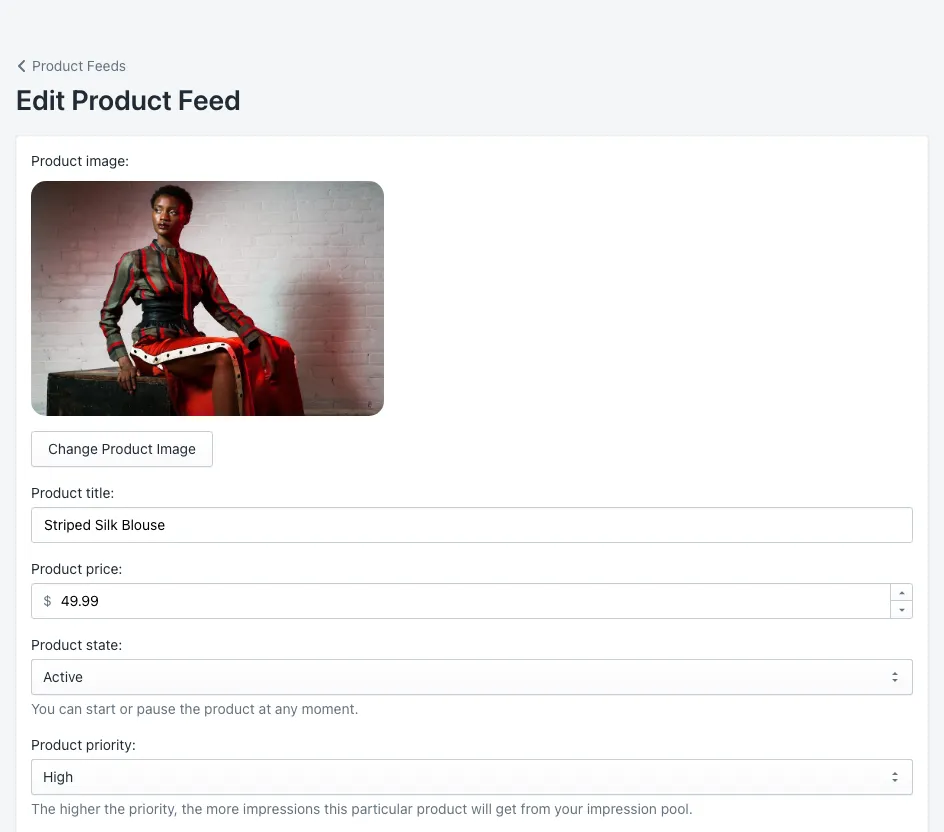
- Product image — Change Product Image lets you pick another image of the product. A clear photo on a plain background usually gets more clicks.
- Product title — a short, clear title reads better in small banners.
- Product price — the price shown in the ads.
- Product state — active or paused.
- Product priority — Lowest to Highest.
These changes apply only to your ads; your Shopify store does not change.
Change many products at once
Tick several rows (or the header box for all) to pause, start or change the priority of many products in one step.
Tips
- Raise the priority of products that sell, not only of those that get clicks — check orders in Campaigns.
- Pause products that are out of stock or seasonal, instead of removing them.
- Products shoppers click most are listed in Click Analytics.
Questions
No. Changes in Product Feeds apply only to your Adeagle ads. Your product page in Shopify stays exactly as it is.
Click the plus icon above the table, choose products or whole collections, and click Add Products. With Sync on, new products in a synced collection join the campaign automatically.