
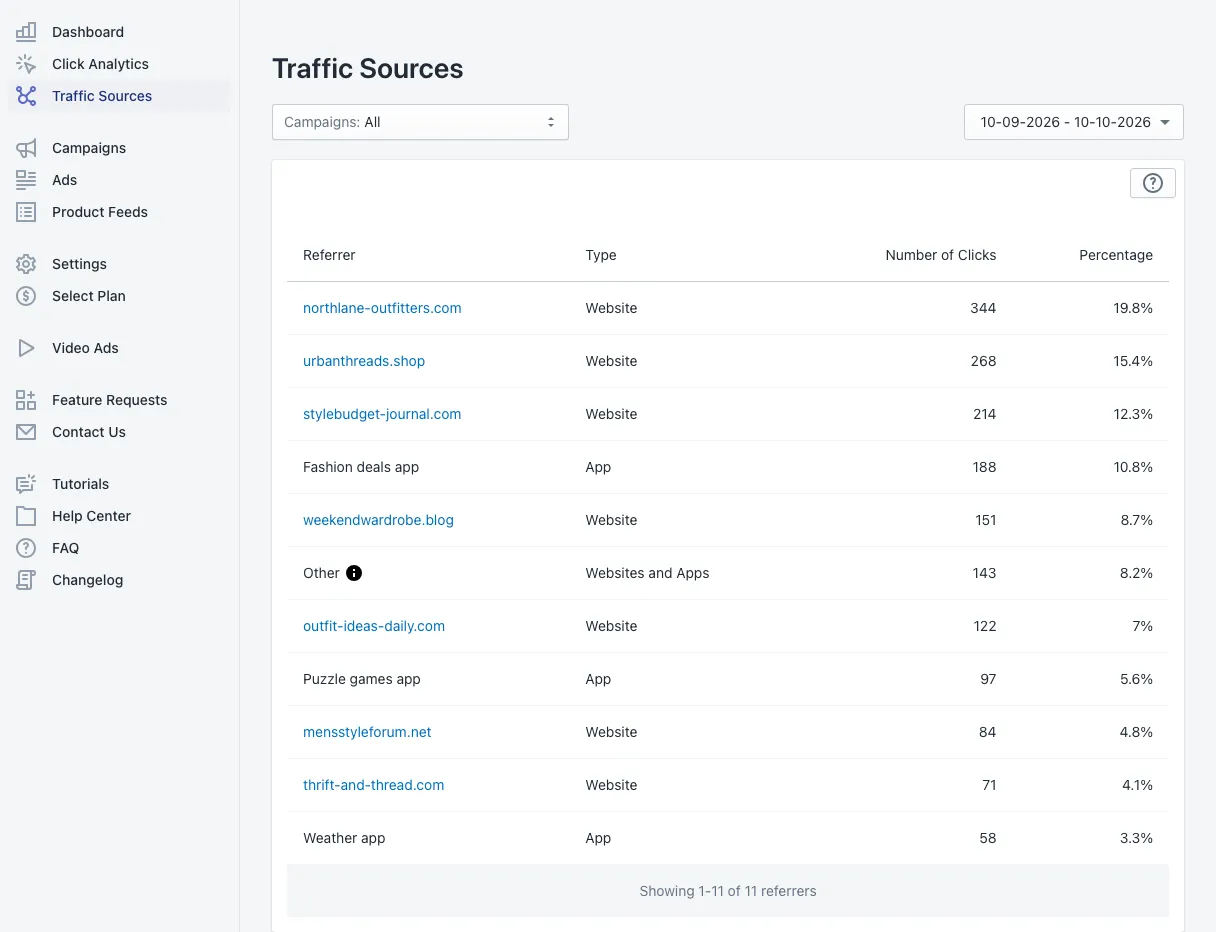
Traffic Sources shows where your visitors come from: the online stores, websites and apps that showed your ads and sent shoppers to your store. Many ad platforms keep this hidden; Adeagle shows it.
Choose what you look at
- Campaigns (top left) — all campaigns, or one.
- Date range (top right) — the last 30 days by default.
The table
Each row is one source of clicks:
- Referrer — the website or app. Websites are links, so you can open them and see where your ads appeared. The name is the main domain; the click may have happened on any page of that site.
- Type — Website for websites and online stores, App for mobile apps, and Websites and Apps for the Other row.
- Number of Clicks — clicks from that source in the selected period.
- Percentage — that source’s share of all your clicks.
Other collects the clicks whose source does not say where it is. Not every page or app shares its address when it sends a visitor, so a part of every store’s traffic lands here.
How to use it
- Check the fit. If the top sources are about what you sell — fashion blogs for a clothing store, cooking sites for kitchenware — your campaign categories and interests are right.
- Look for patterns. Many clicks from apps? Your products work well on mobile; check that your store’s mobile pages are fast.
- Compare campaigns. Pick one campaign at a time to see if each one reaches the audience you meant it for.
Where to go next
- See which products those visitors clicked in Click Analytics.
- Change the categories, interests or countries of a campaign in Campaigns.
Questions
Not every website or app tells your store where a visitor came from. Those clicks are still real and counted; they are grouped as Other because their source is not shared.
Adeagle manages placements for you and moves your budget toward the websites and apps that perform. If a source worries you, write to [email protected].