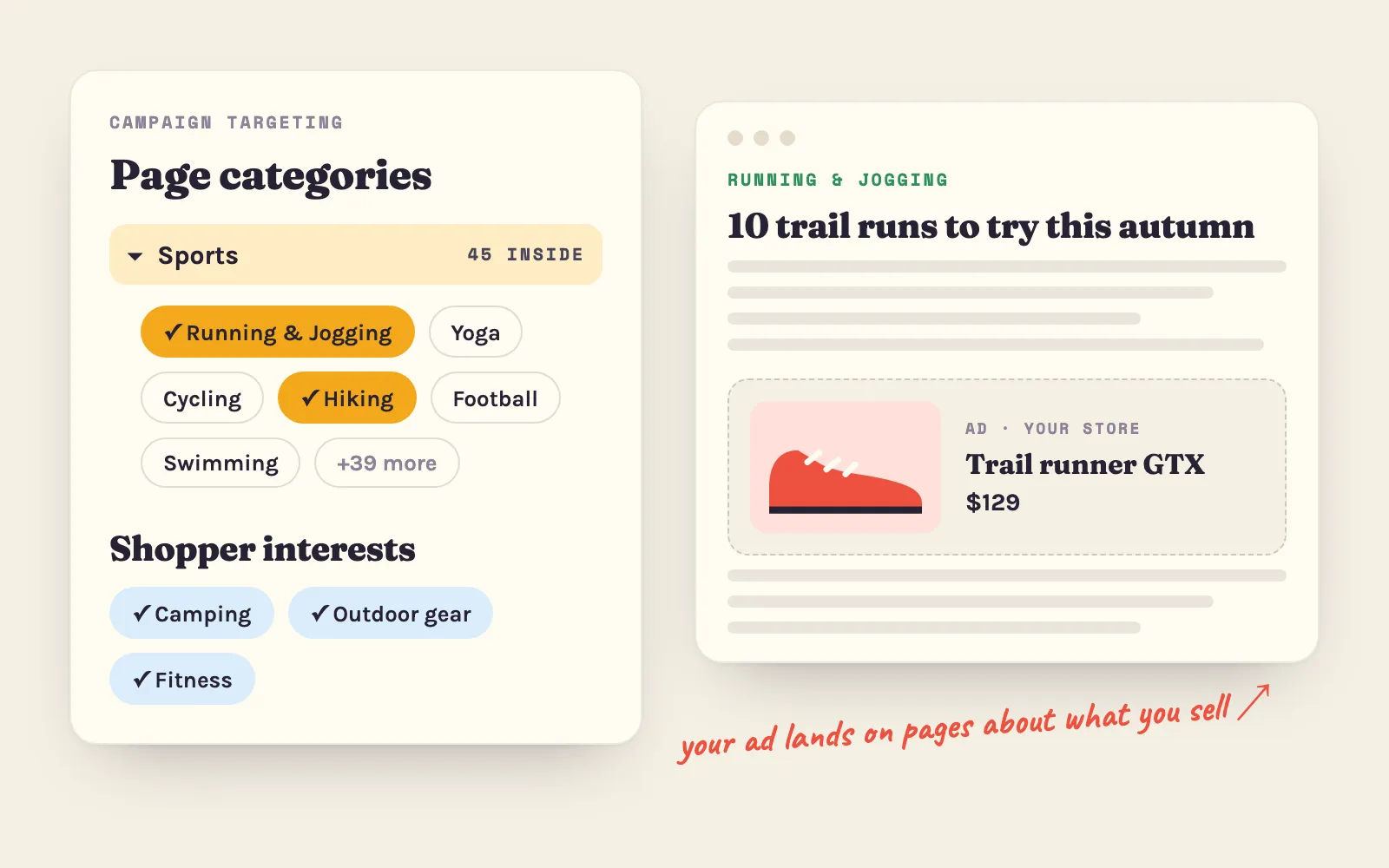
Short version: your campaigns can now aim at 300+ page categories and 600+ shopper interests — and pick as many of each as fit what you sell. Same ads, much better aim.
Adeagle has always matched your ads to what a page is about and to what a shopper browses. Sometimes it did that too broadly: “Sports”. “Home”. A store selling trail running shoes and a store selling yoga mats both ended up in “Sports”, next to football news. Now “Sports” opens into Running & Jogging, Yoga, Cycling, Football, Hiking and about forty more — and your ads go to the ones that actually fit your products.
Two ways to aim your ads
Every campaign now has two kinds of targeting. They answer two different questions, and together they decide where your ads appear and who sees them.
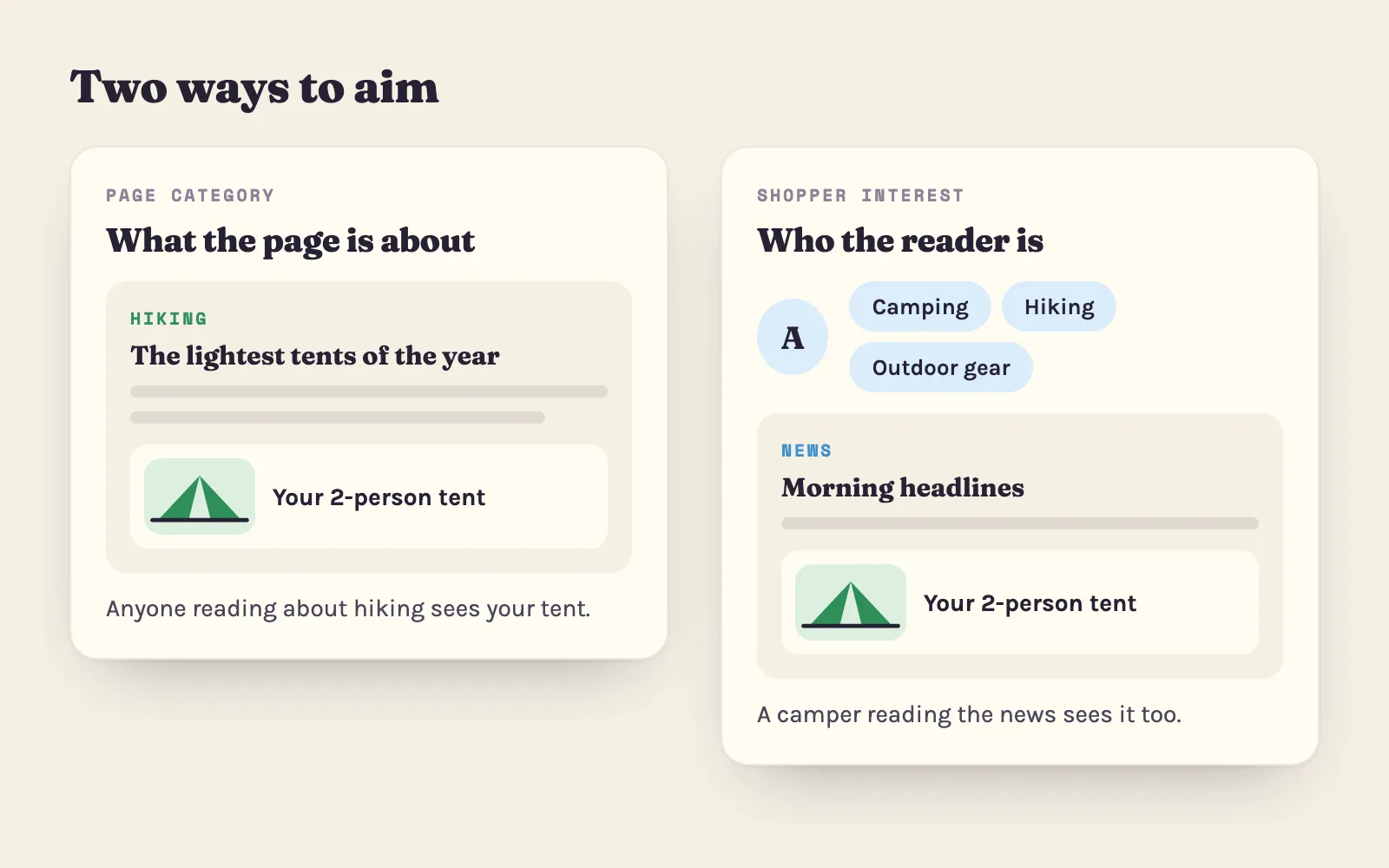
Page categories: what the page is about
Every page your ads can appear on — an article, a blog post, a forum thread, a product page in a partner store — is sorted into one specific category. There are more than 300 of them, from Running & Jogging to Home Decor to Baby Care.
Pick the categories that describe your products, and your ads appear on pages about those things. Sell trail shoes? Your ads can appear on running and fitness pages — not on a page about skiing. The reader is already thinking about the topic, so your product feels relevant instead of random.
Shopper interests: who the reader is
Every shopper has interests too — 600+ to choose from, based on what they read and browse. Someone who keeps reading about camping is a good person to show a tent to, even when they are currently reading the morning news.
Interests follow people, not pages. That is what makes them powerful: your ads reach the right shoppers on the news sites, blogs, magazines and online stores where they spend the rest of their day.
Interest targeting like on social media — across the rest of the web
If you advertise on Facebook or Instagram, you know interest targeting: you describe who your customer is and the platform finds them. That only works inside Facebook and Instagram.
Adeagle brings the same idea everywhere else: to partner Shopify stores, thematic websites, blogs and mobile apps. The shopper who scrolled past your product on Instagram can see it again tomorrow on a site about exactly what they love.
You can pick several of each
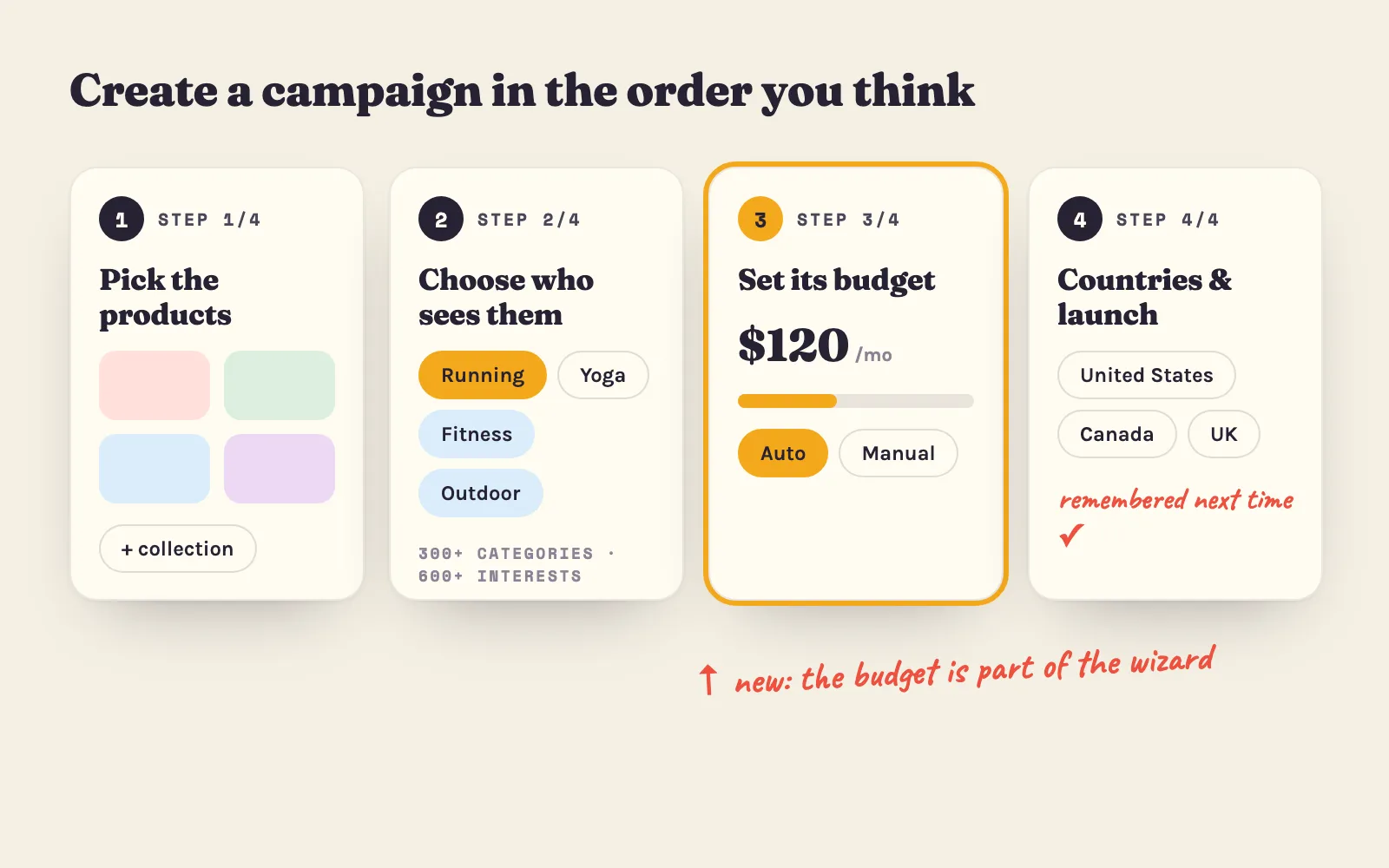
You are no longer limited to one category per campaign. Pick every category that really describes what the campaign advertises, and as many interests as fit your customers.
- Too few and your ads reach fewer places, so the campaign learns slowly.
- Too many unrelated ones and the targeting turns broad again.
- A good start: all the categories that describe the products in the campaign, plus three to five interests your best customers share.
Selecting a category that has more inside it selects everything inside. You can also open it and pick only the parts that fit.
Your campaigns were moved over automatically
You don’t have to do anything. We moved every campaign’s old category and interests to the new, more detailed ones, and every campaign kept running.
That said, you know your customers better than any algorithm does. Open a campaign in the Campaigns section, look at its categories and interests, and add anything we missed. The more precise the match, the more clicks you get — and the more of those clicks turn into orders.
How to check that your targeting works
Give a campaign two to three weeks to learn, then look at three places:
- Clicks and CTR on the dashboard — a sharper target usually lifts the click-through rate first. The CTR calculator shows what is usual for each product category.
- Traffic Sources — the websites and apps that sent you visitors. If they match your products, the categories are right.
- Orders and revenue per campaign — the number that matters most.
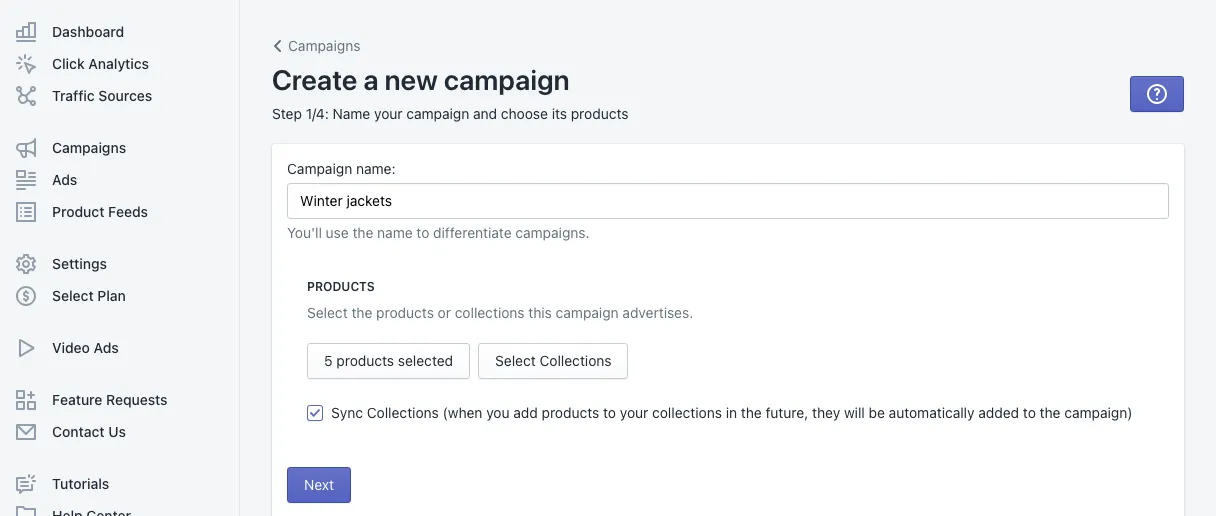
If one campaign does much better than another, copy its targeting into a new campaign with different products. A second campaign is the fastest way to learn what your store’s shoppers respond to — see how to create a campaign.
On the free Standard plan? Choose what shows in your store
On the free plan your store shows partner ads, so you get something too: you can pick the ad categories you never want on your pages. Block a whole category in one click and it is gone from your store. You find it in Settings, under “Exclude ad categories”.
Remember that the more ads your store can show, the more your own products are shown in partner stores. Want no partner ads in your store at all? Every paid plan advertises your products across the web with nothing on your own pages.
Questions
A page category is what the page is about, such as Running & Jogging. A shopper interest is what the reader cares about, such as Camping. Categories put your ads on relevant pages; interests put them in front of relevant people on any page.
Pick every category that really describes your products, plus a handful of interests. Broad picks reach more places; narrow picks are more precise. A second campaign with different picks is the fastest way to learn what works.
No. Your old categories and interests were moved to the new ones automatically. Open a campaign to add anything that fits your products even better.