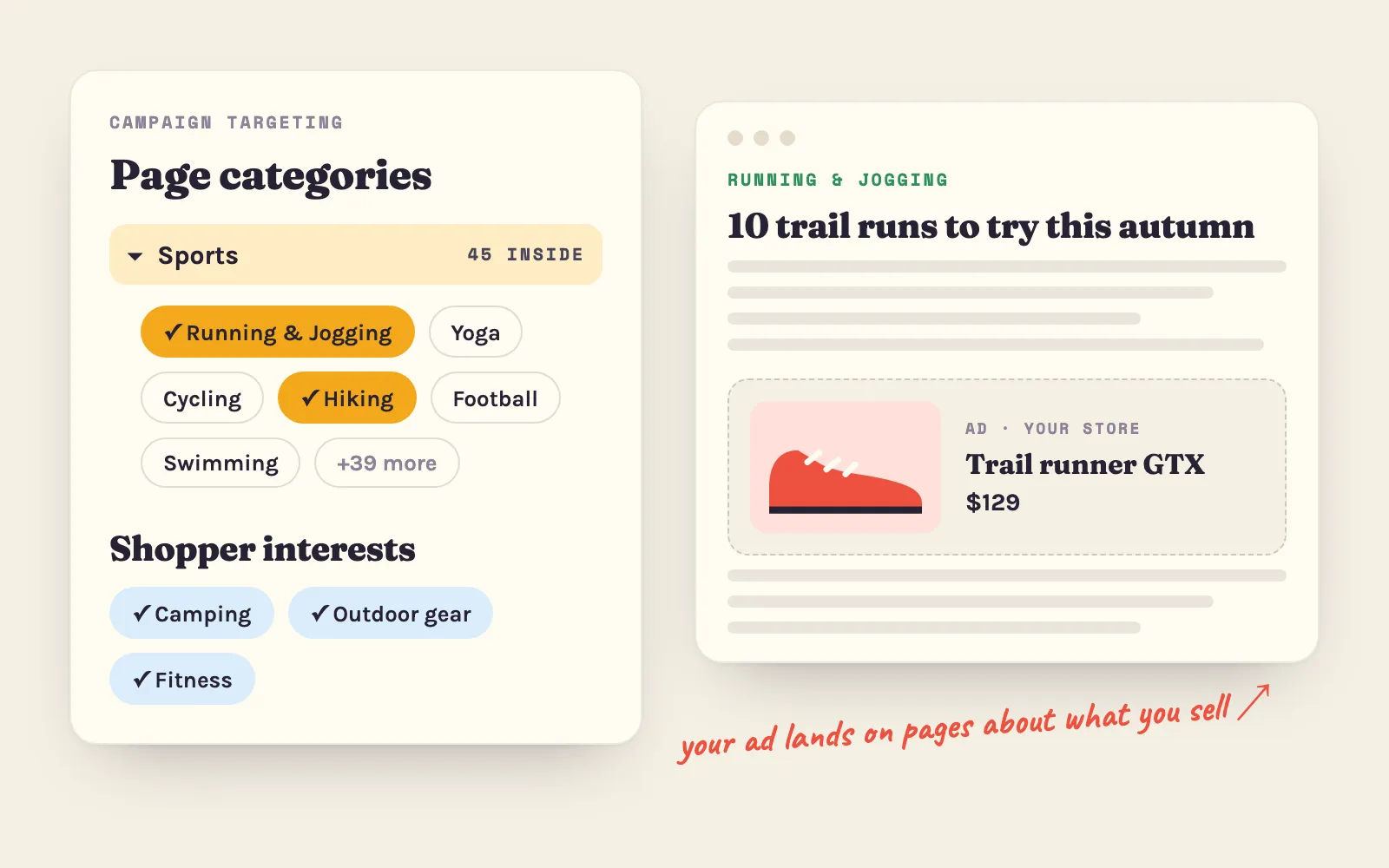

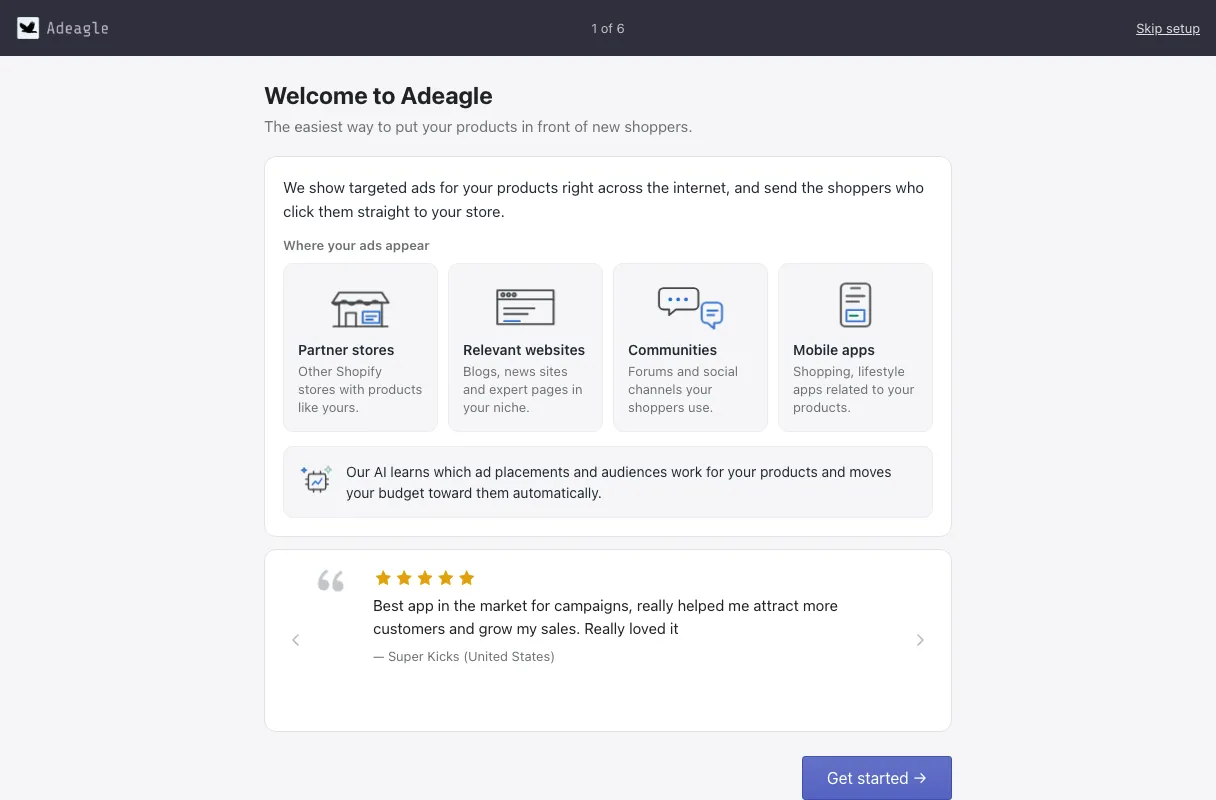
Adeagle puts your products in front of shoppers who are already shopping: in other Shopify stores, on websites and blogs about what you sell, in communities and in mobile apps. This guide takes you from installing the app to a live campaign, and tells you what to expect in the first weeks.
1. Install Adeagle
Open Adeagle in the Shopify App Store and click Install. Shopify shows the permissions Adeagle needs — your products and collections, to build your ads, and your orders, to show the sales your ads bring. Approve them and Adeagle opens inside your Shopify admin.
2. The setup: six short screens
The first time you open Adeagle, a short setup walks you through everything. You can Skip setup at the top right at any time.
Screen 1 — Welcome. Where your ads will appear: partner stores, relevant websites, communities and mobile apps.
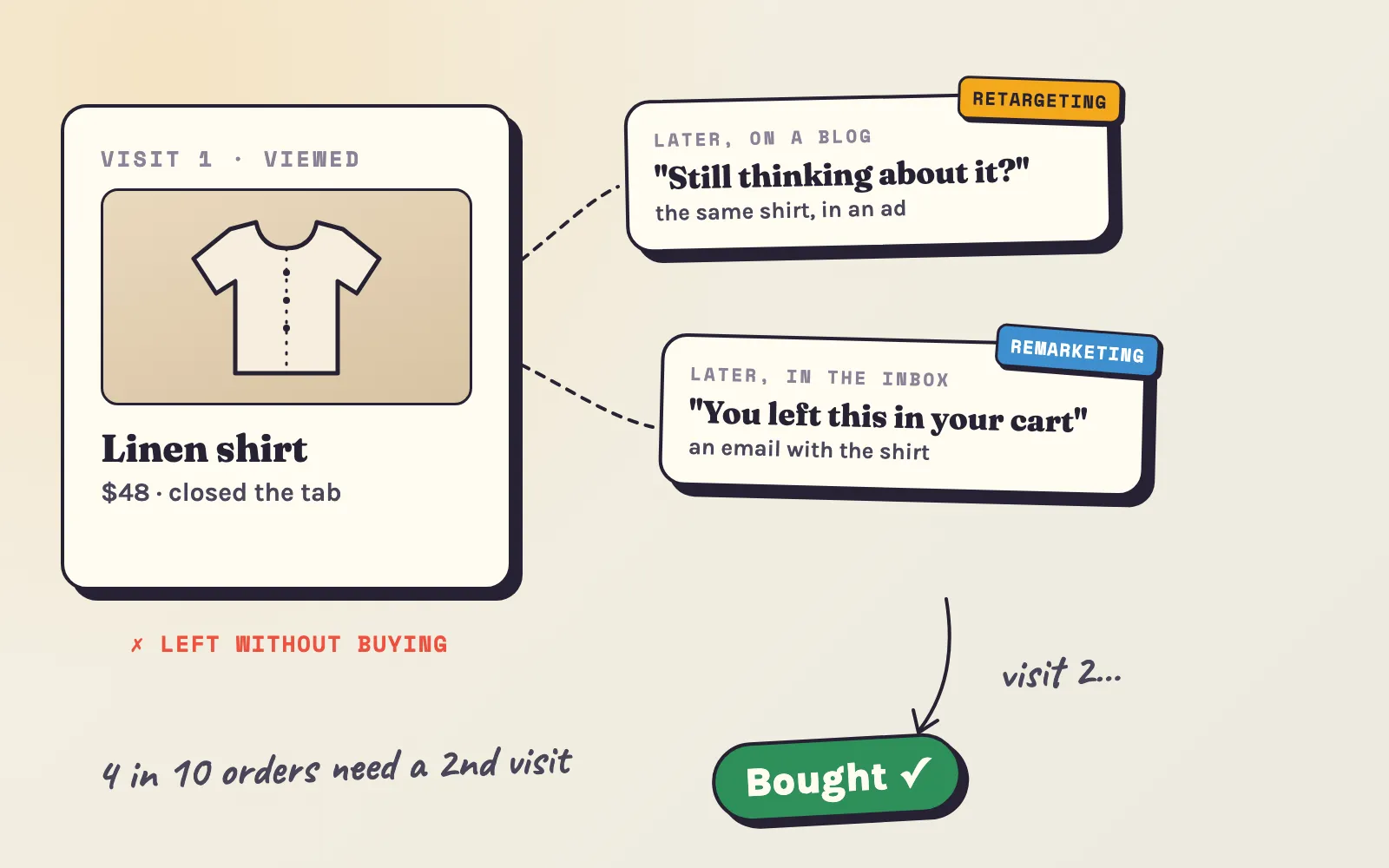
Screen 2 — Enable Adeagle in your store. One button opens your theme editor with the Adeagle app embed already switched on — you only click Save. The embed lets Adeagle see which products shoppers view, add to cart and buy, so it can optimize your ads, bring back visitors who did not buy, and count your sales. You can also choose Do it later; Adeagle reminds you.
Screen 3 — Your goal. Scale my store, More sales, More store visitors or Brand awareness.
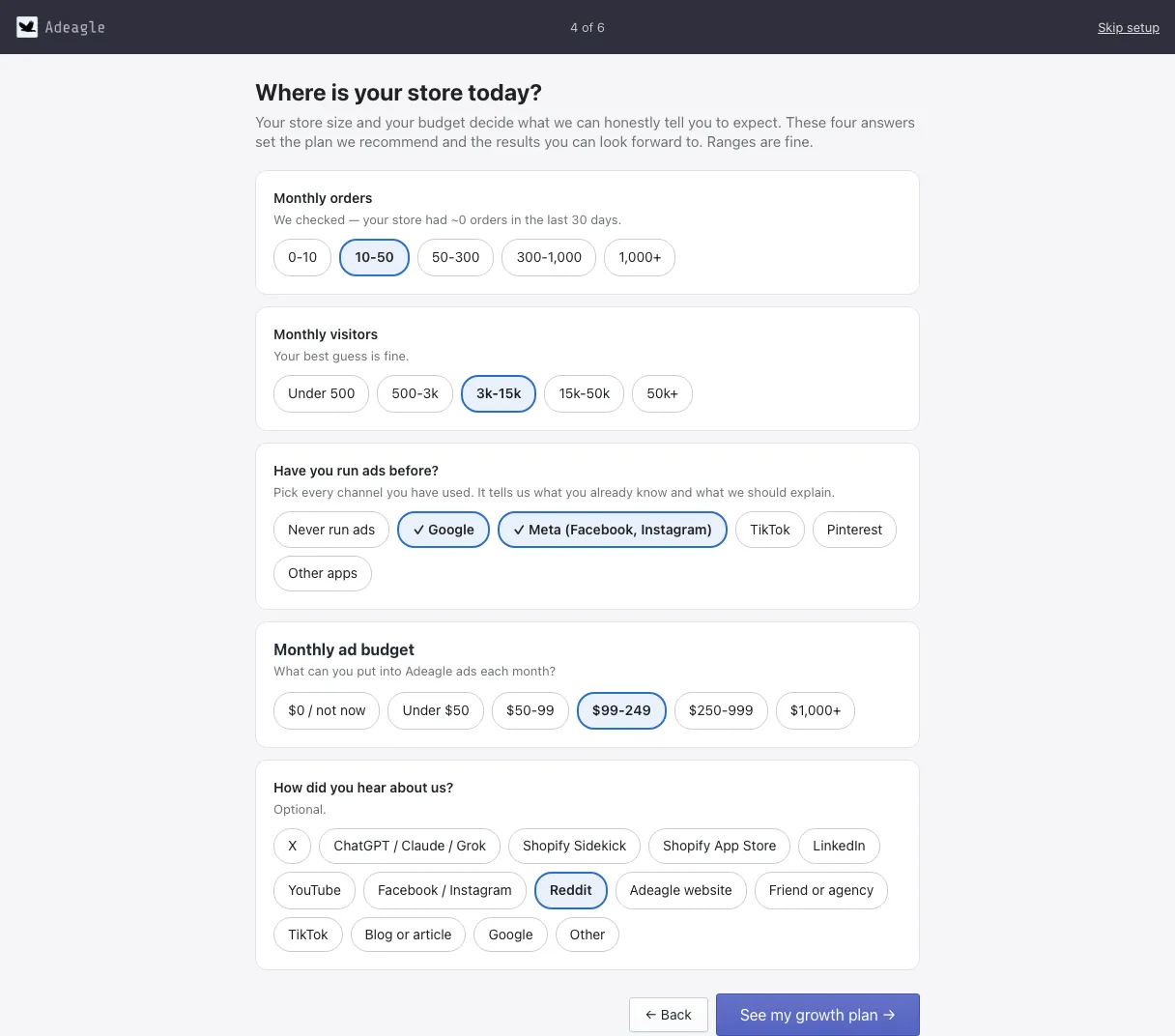
Screen 4 — Where is your store today? Your monthly orders, your monthly visitors, the ad channels you have used, and the monthly ad budget you have in mind. Rough answers are fine.
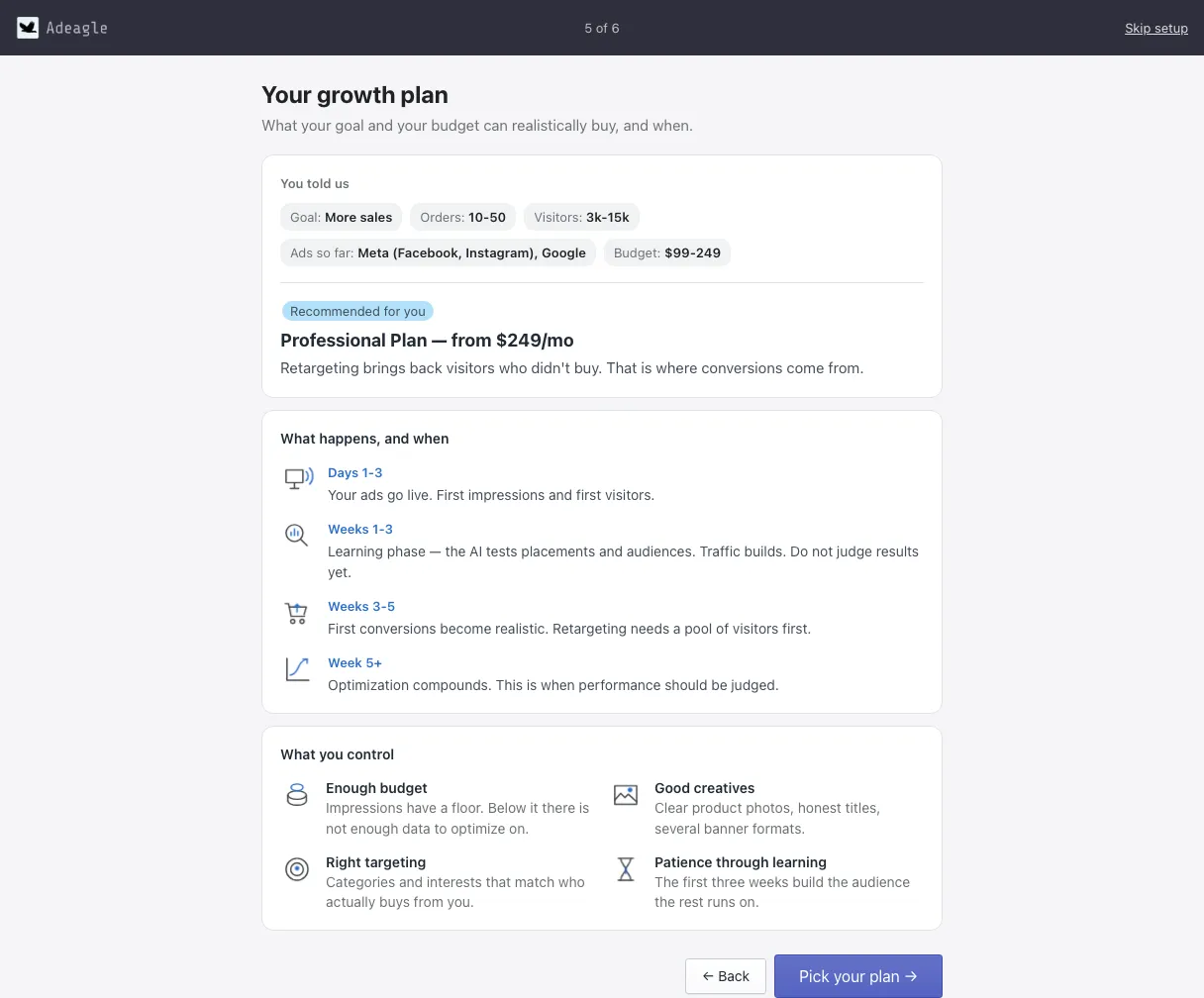
Screen 5 — Your growth plan. From your answers, Adeagle recommends a plan and a budget, and shows what to expect and when:
- Days 1–3 — your ads go live: first impressions and first visitors.
- Weeks 1–3 — the learning phase: Adeagle tests placements and audiences. Do not judge results yet.
- Weeks 3–5 — first conversions become realistic. Retargeting needs a pool of visitors first.
- Week 5 and later — optimization compounds. This is when to judge performance.
Screen 6 — Pick your plan. The recommended plan is marked, and every plan is on the page. On a paid plan, the price is your monthly ad budget; Shopify asks you to approve the charge. The free Standard plan is an ad exchange — your store shows partner ads, and your products appear in partner stores in return. More in Select Plan and on the pricing page.
3. Your first steps checklist
After the setup, the Dashboard shows a checklist of the steps that matter most — finish the setup, enable Adeagle in your theme, choose a plan, create your first campaign, get your first impressions, create a second campaign and optimize your budgets. Each completed step earns you 1,000 free ad impressions.

4. Create your first campaign
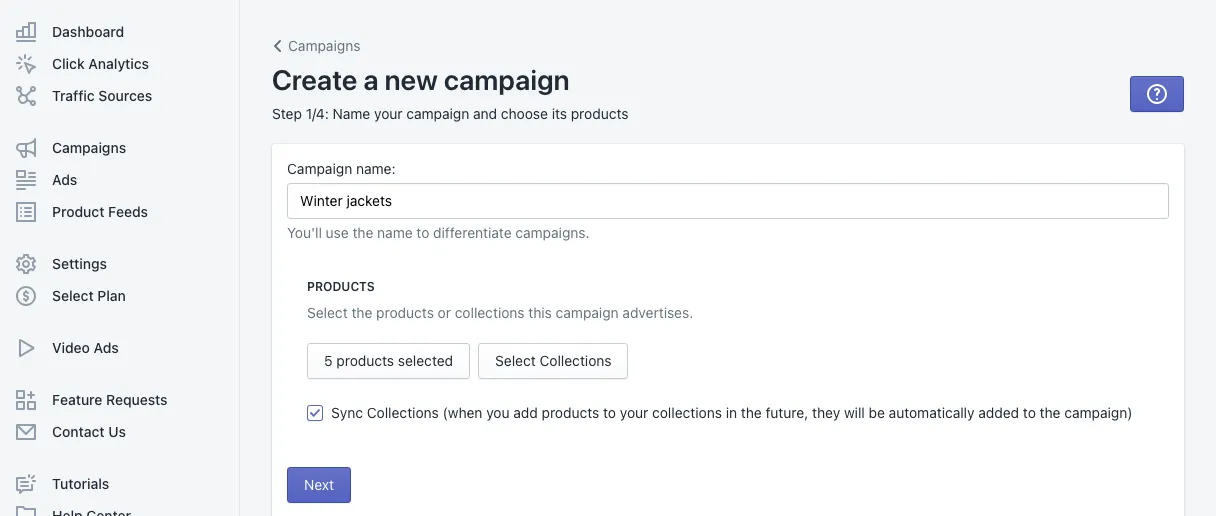
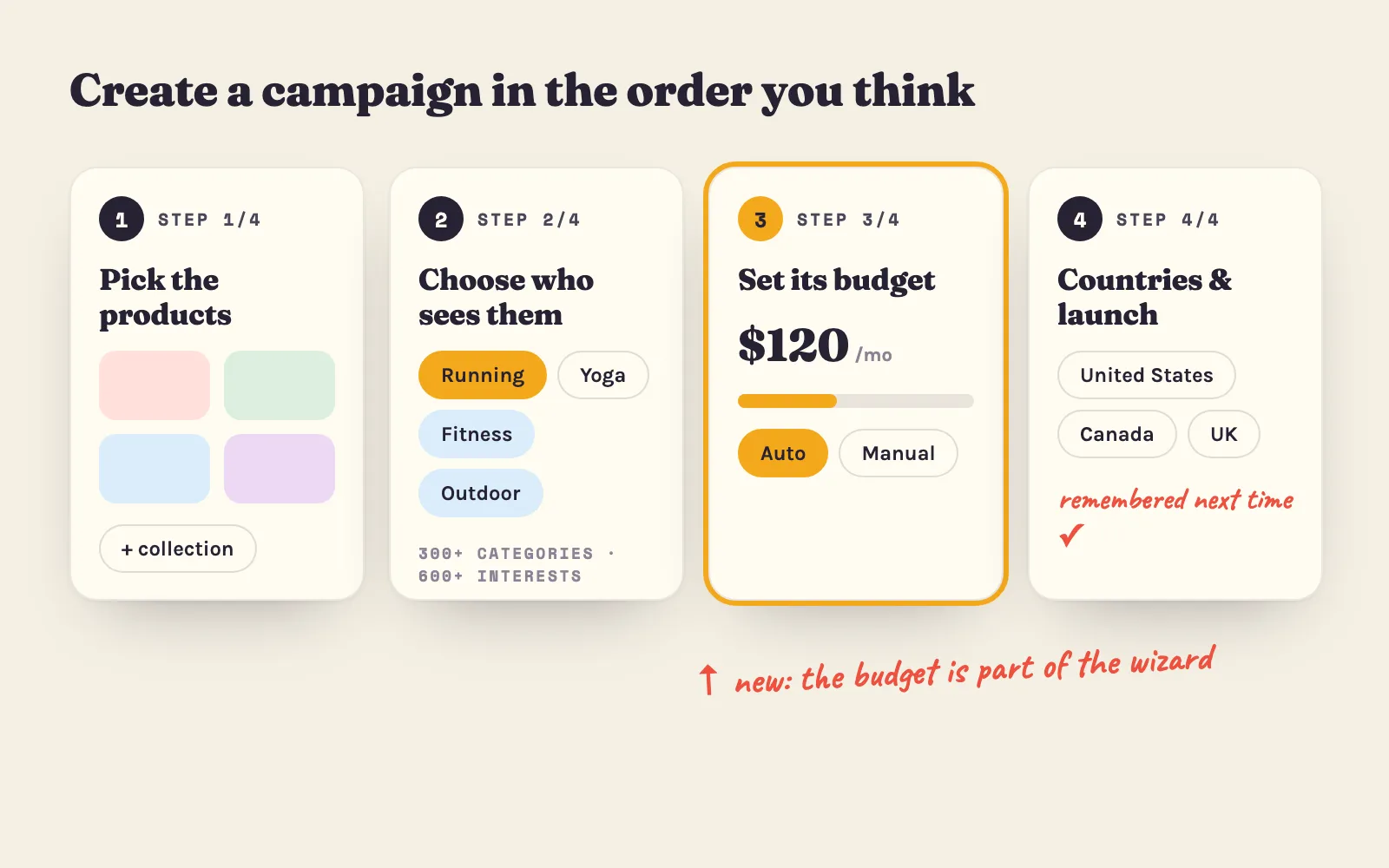
Click New Campaign on the Dashboard or in Campaigns. The wizard has four steps: pick the products, choose who should see them, set the campaign’s budget, and choose the countries. It takes a few minutes — Create your first campaign walks through every screen.
5. A quick tour of the app
The menu on the left has three groups:
- Measure — Dashboard (all your results), Click Analytics (every click and your most-clicked products) and Traffic Sources (the websites and apps that send visitors).
- Run — Campaigns (your campaigns and their budgets), Ads (every banner format) and Product Feeds (your products in the ads).
- Set up — Settings and Select Plan.
6. What to check in your first weeks
- Days 1–3: impressions and first clicks on the Dashboard. No impressions after two days? Check that the campaign is Active and that Adeagle is enabled in your theme.
- Weeks 1–3: let the learning phase run. Look at Traffic Sources — do the sites fit what you sell? — and at your most-clicked products.
- Week 3 on: compare orders, revenue and ROAS between campaigns in Campaigns, and move budget toward what sells.
- Any time: a second campaign with different products or interests is the fastest way to learn what works for your store.
Questions? The Help Center explains every screen, and [email protected] answers the rest.
Questions
Open Adeagle's listing in the Shopify App Store and click Install. Shopify asks you to approve the app's permissions, and the setup starts right away.
Yes. Skip setup at the top right takes you straight to the app. You can pick a plan in Select Plan and create campaigns any time.
Only on the free Standard plan, which is an ad exchange. On every paid plan your store shows no partner ads.